Coupon Management
This guide explains how to create, edit, and delete discount coupons in the Admin Dashboard.
1. Access the Admin Dashboard
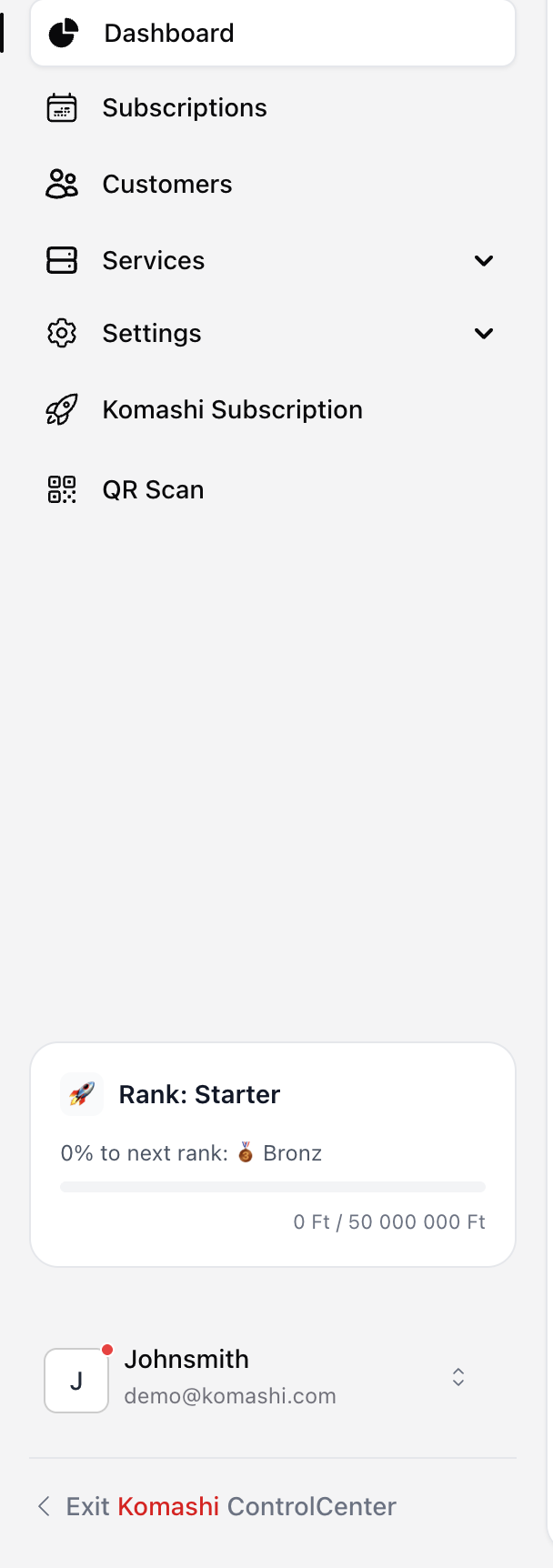
Log in to the Admin Dashboard.
2. Open Coupon Management
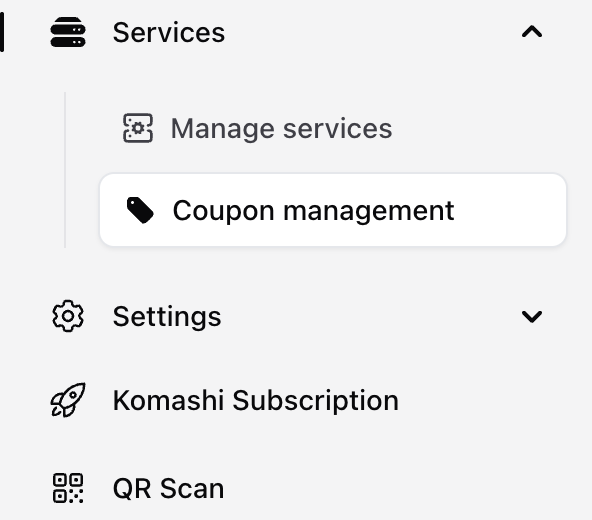
Click Coupon Management in the left sidebar.
Here you can manage your existing coupons or create new ones.
3. Add a New Coupon
Click Add Coupon to create a new discount coupon.
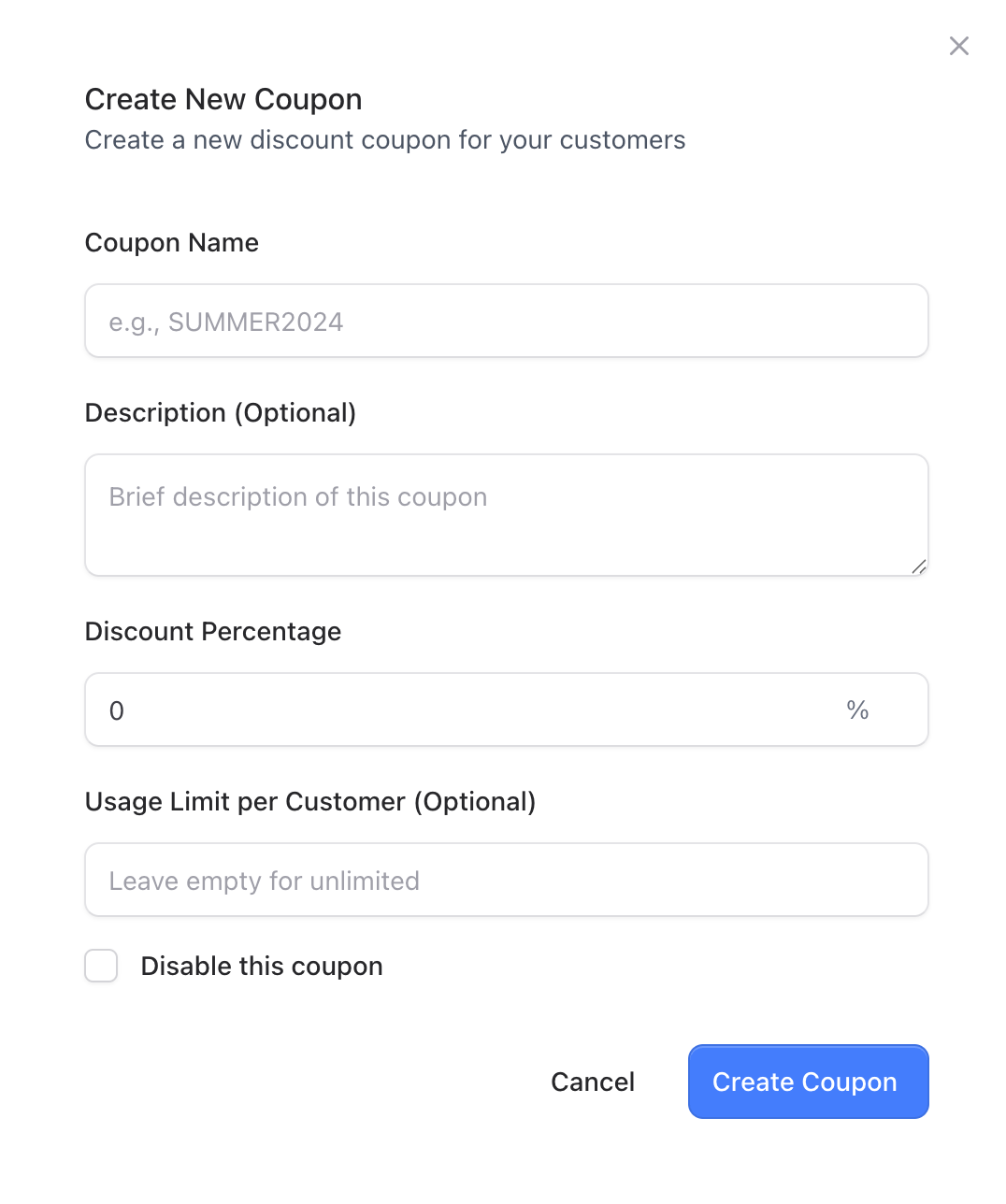
Create New Coupon
Set up your coupon details:
- Coupon Name
- Description (Optional)
- Discount Percentage
- Example:
10%,25%, etc.
- Example:
- Usage Limit per Customer (Optional)
Leave empty for unlimited usage.
When ready, click Create Coupon.
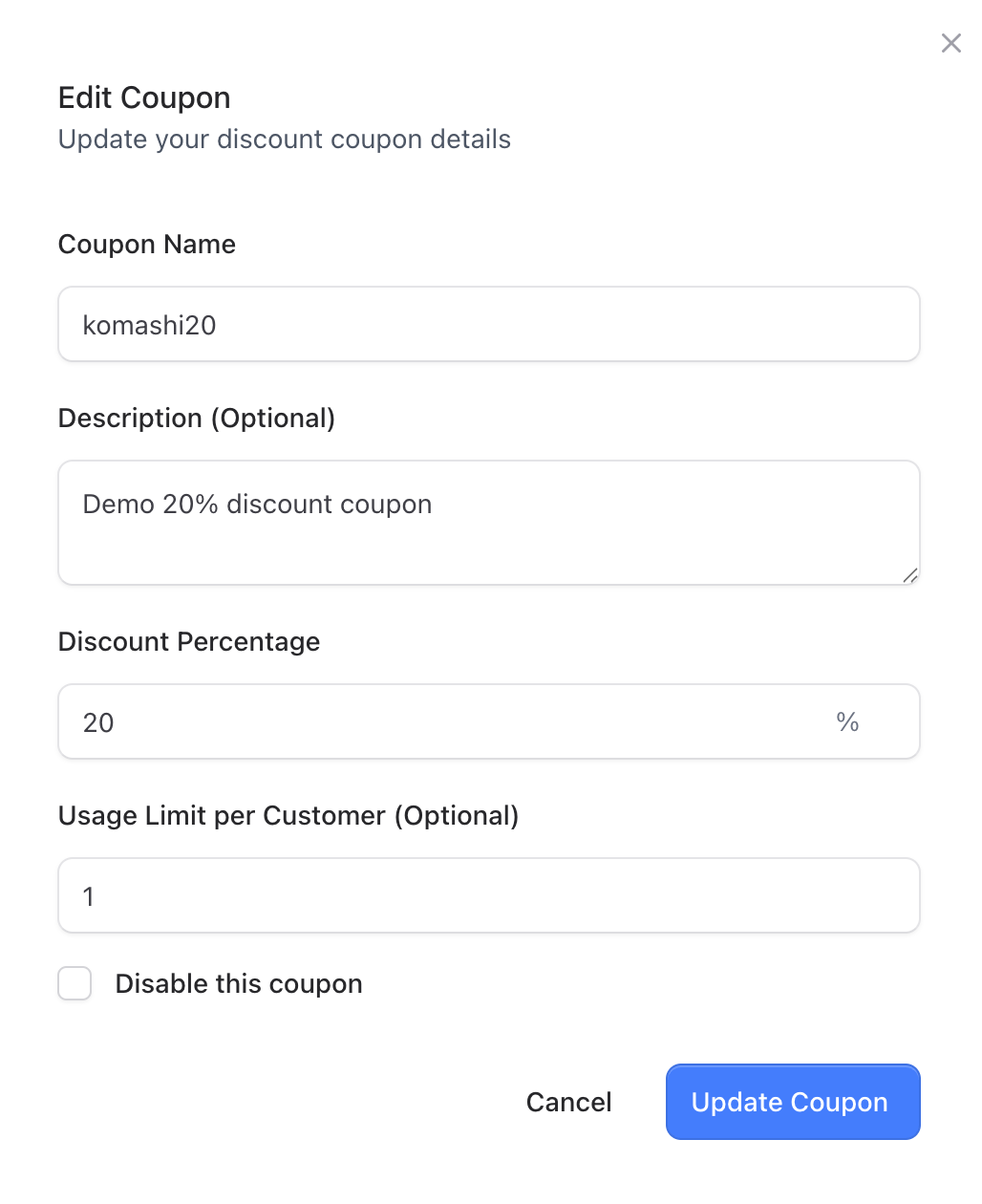
4. Edit an Existing Coupon
Click on an existing coupon to open the editing interface.
Edit Coupon
Update any of the following:
- Coupon Name
- Description
- Discount Percentage
- Usage Limit per Customer
You can also disable the coupon if you no longer want it active.
Click Update Coupon to save changes.
5. Delete a Coupon
To delete a coupon:
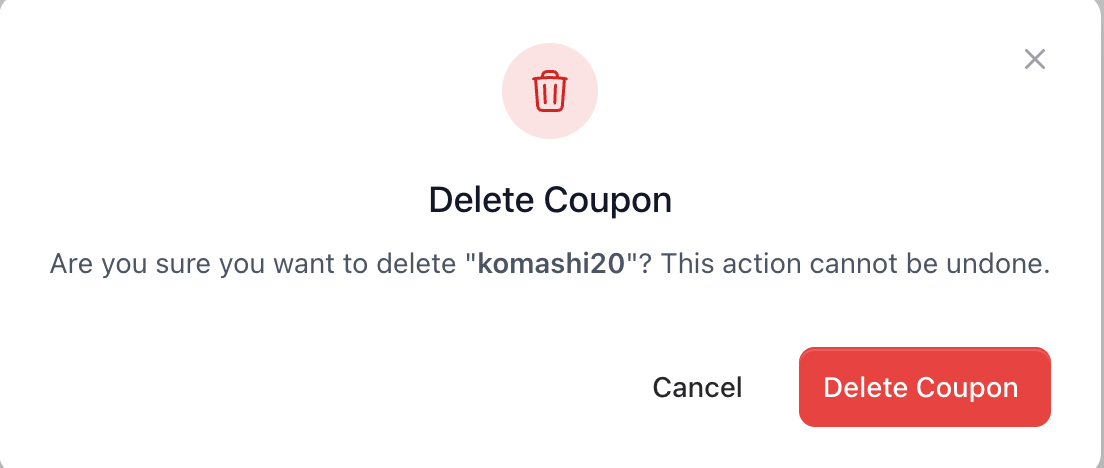
- Click the trash bin icon next to the coupon.
- Confirm the action by clicking Delete Coupon (in red).