Edit Pricing
This guide explains how to edit the pricing of your services in the admin dashboard.
1. Access the Admin Dashboard
- Log in to the Admin Dashboard.
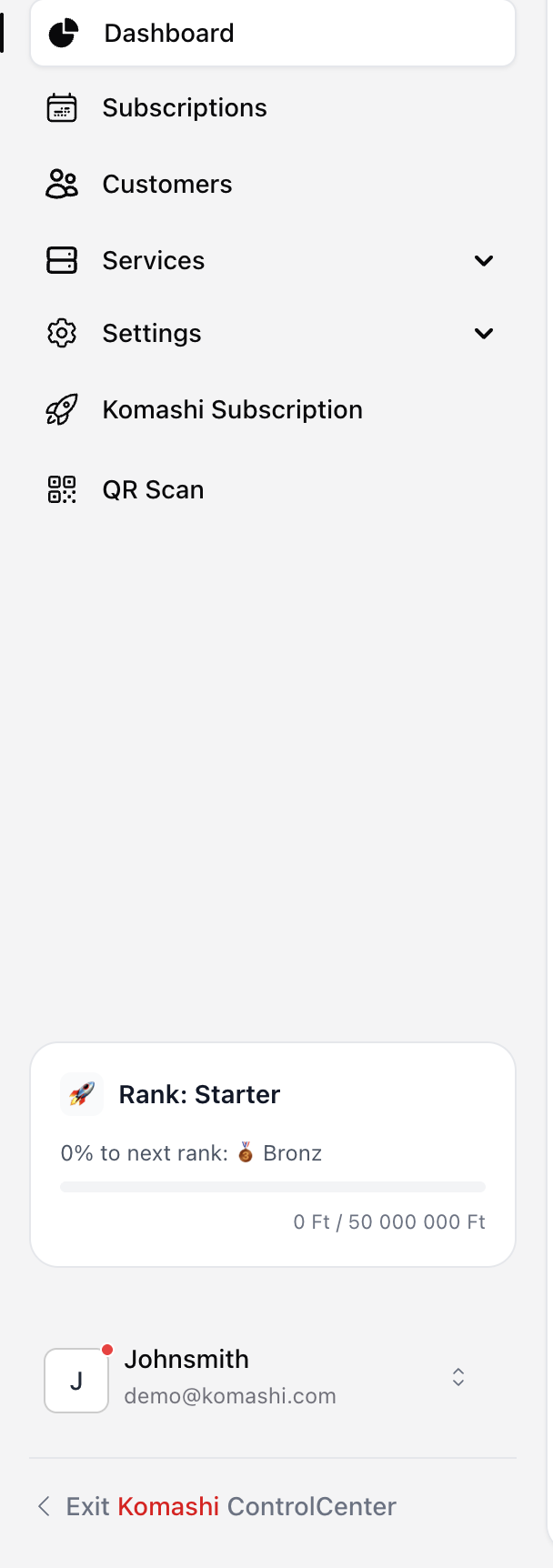
- From the left sidebar, click Services → Manage Services.
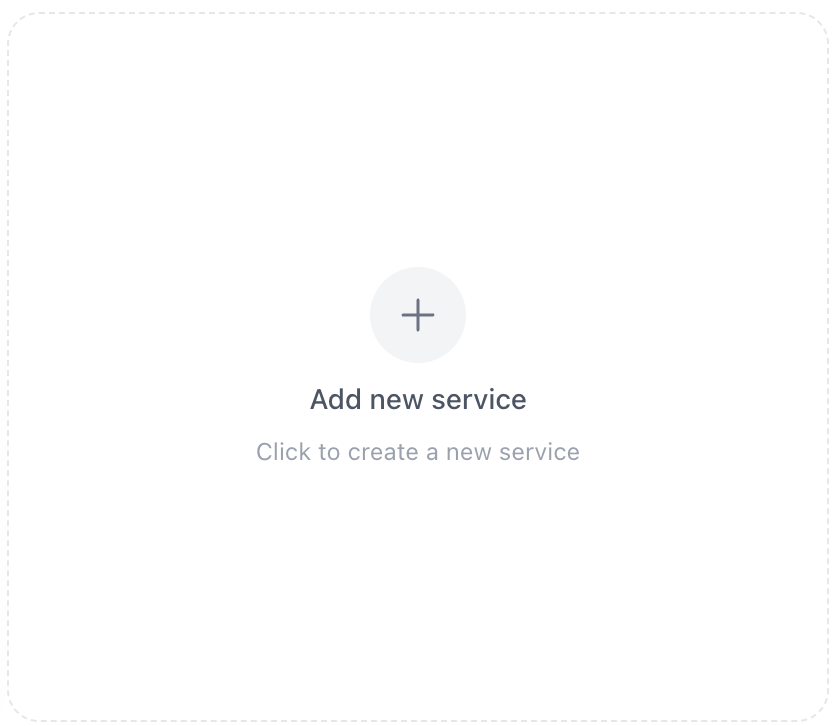
If you have not added any services yet, click Add New Service.
(For details, see: Add Services
)
2. Open Pricing Settings
- Select the service you want to edit.
- Click the Pricing tab.
3. Pricing Options
In the Pricing section, you can configure:
Add New Plan
Create a new pricing plan if needed.
Recurring Add-on Services
Subscriptions or repeating charges.
One-time Services
A single payment for the service.
4. Edit an Existing Price
To modify the price of an existing plan:
- Click the pencil icon next to the plan you want to edit.

5. Price Configuration
When editing, you will see the Price Configuration panel.
Standard Pricing
Set a fixed, VAT-calculated price.
-
Gross Price (with VAT)
Example:PRICE -
VAT (%)
Example:VAT% -
Net Price (before VAT)
Automatically calculated
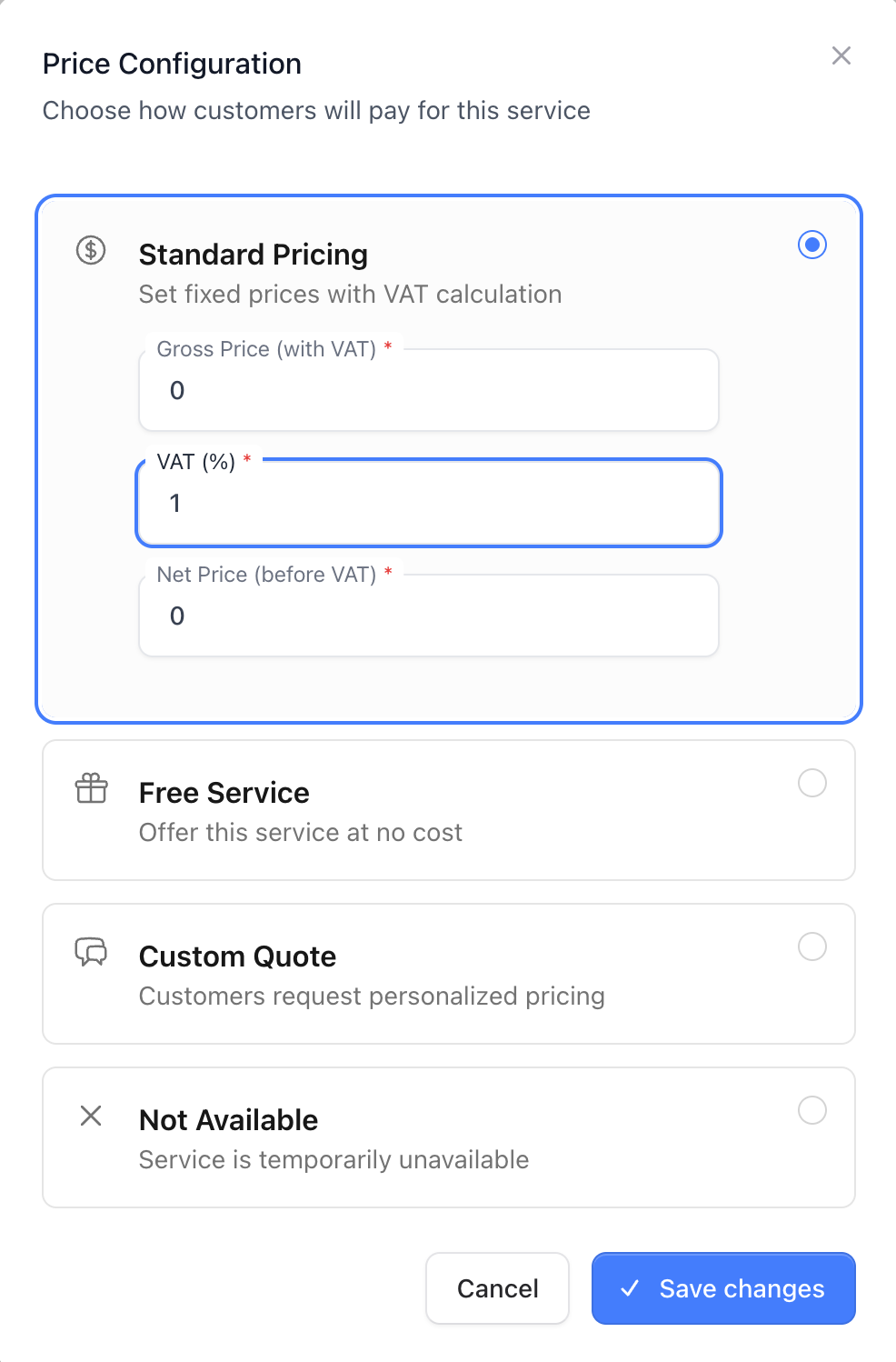
Not Available
Temporarily disable or hide the service.
6. Save Your Changes
When you're done, click Save to apply the changes.
If you need help adding services, visit: Add Services